1. Invite the DicoPick bot to your server
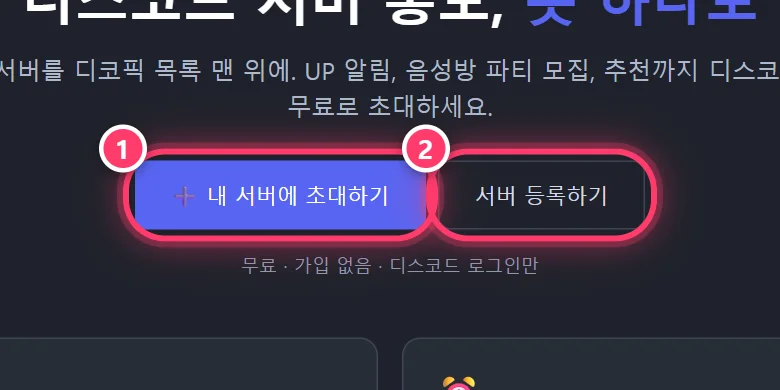
On the bot page, click Invite to my server, pick the server, then click Authorize.
The bot does not ask for administrator permission and does not store message content.
📘
Bot commands and site features, grouped by category. Follow the red numbers in the screenshots.
Note: the screenshots show the Korean interface.
Invite the bot → log in → register your server. It takes about 3 minutes.
On the bot page, click Invite to my server, pick the server, then click Authorize.
The bot does not ask for administrator permission and does not store message content.
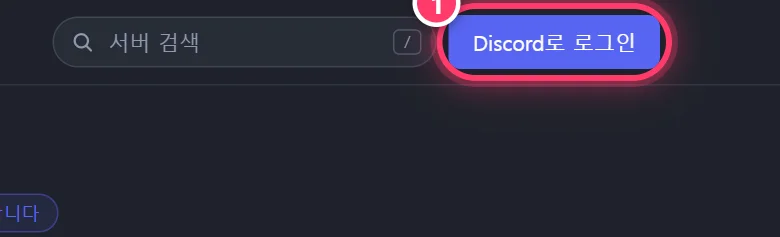
Click Log in with Discord at the top right to open Discord's login screen. No separate sign-up needed.
💡 DicoPick only receives your nickname, profile picture and the list of servers you're in. It cannot see your password, messages or DMs.
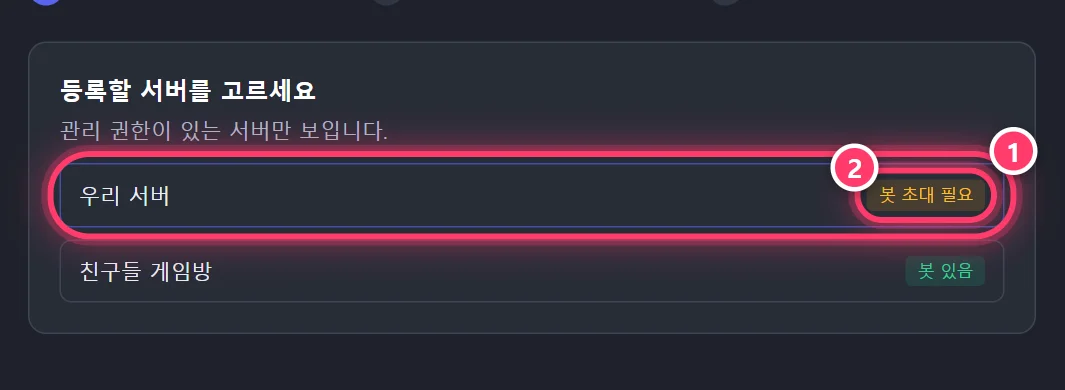
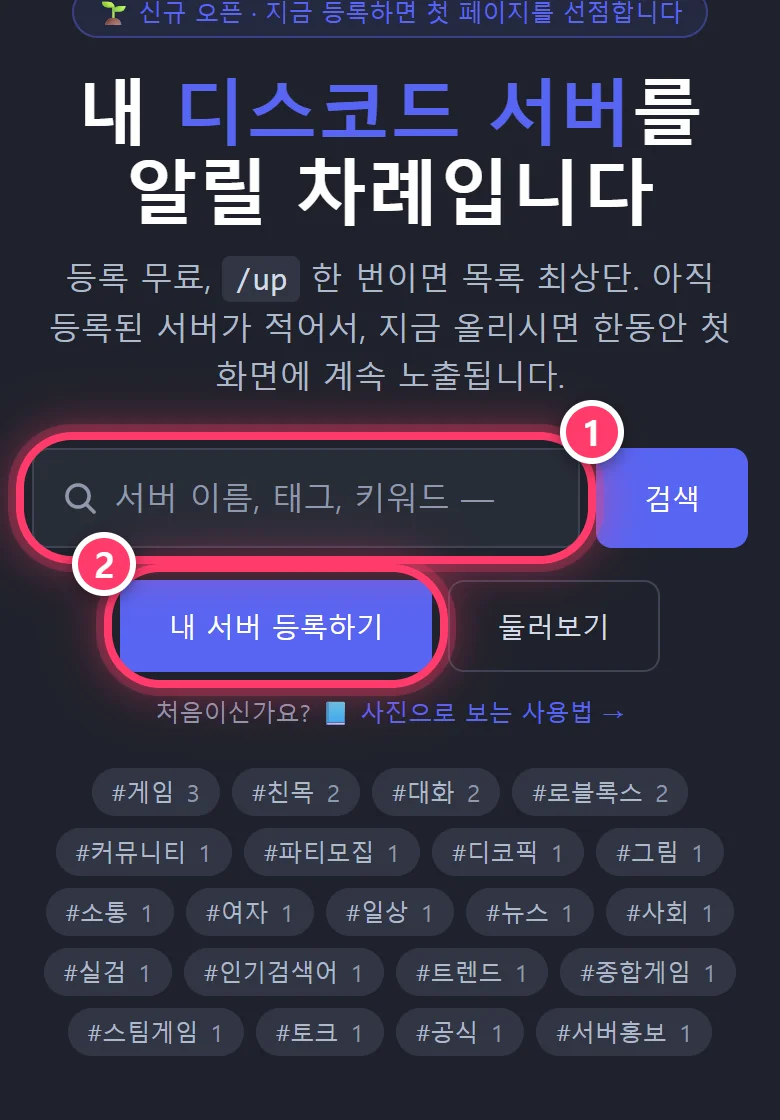
Click Register my server on the home page to open registration. You'll see the servers you have manage permissions on.
If it says Bot invite needed, you'll invite the bot in the next step.
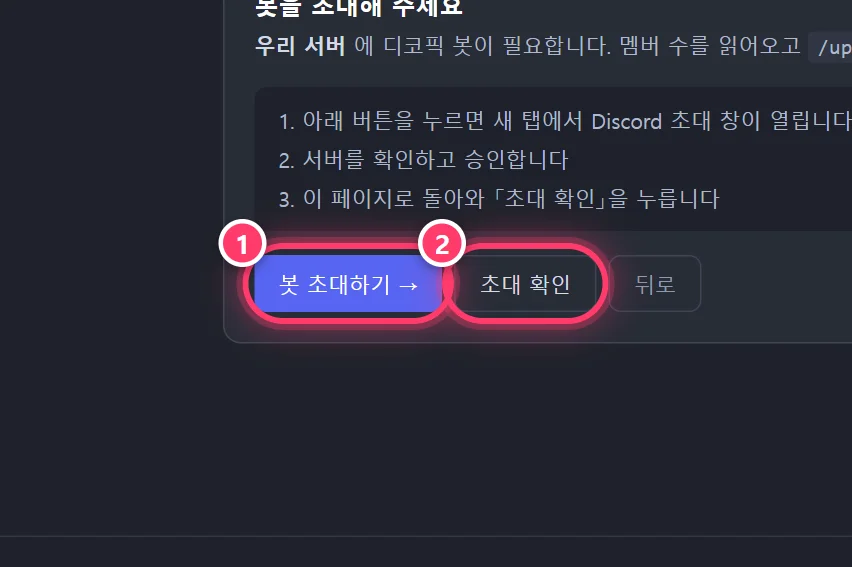
Invite the bot in a new tab with Invite bot, then come back and click Check invite to move on.
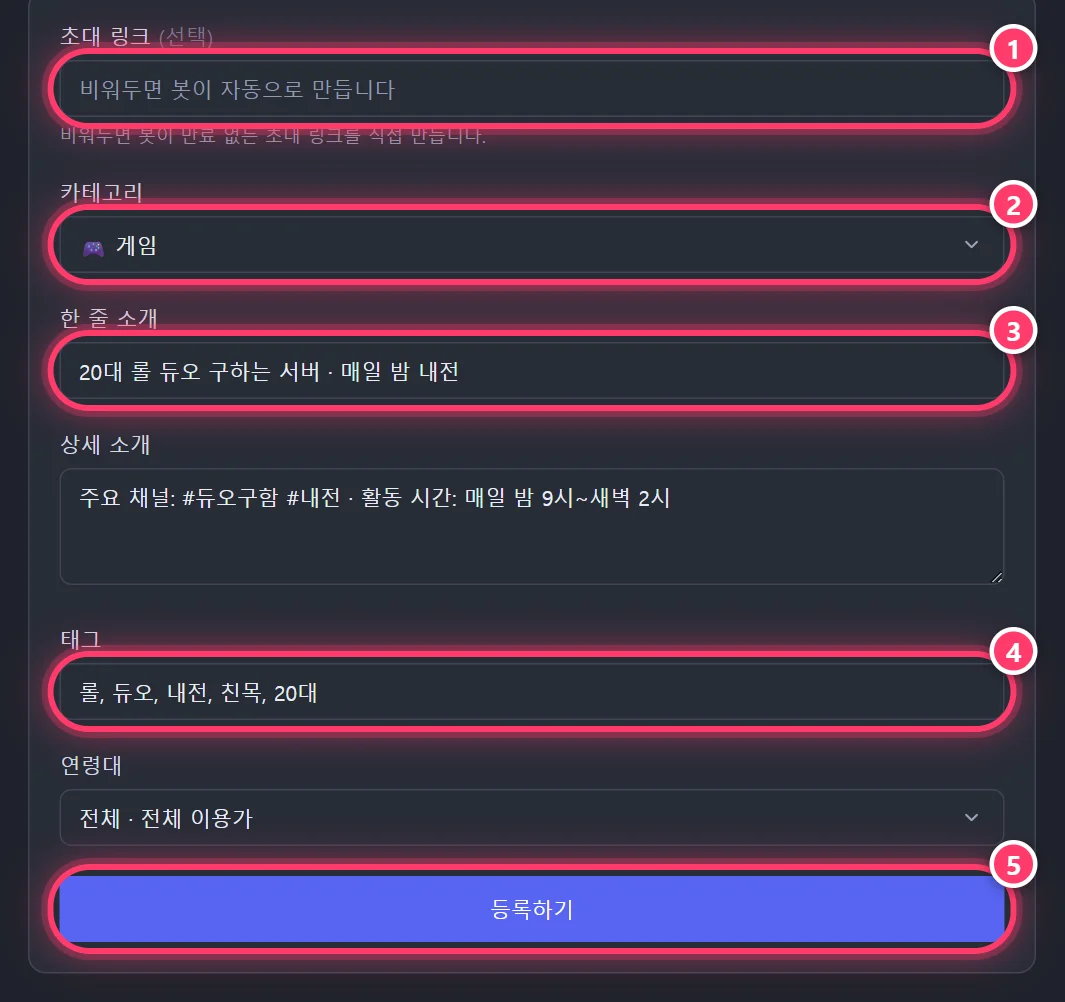
Enter a category, one-line description (10–160 characters), full description (50+ characters), tags (up to 5) and age rating, then click Register — your server is listed right away.
Leave the invite link empty and the bot will create a never-expiring link for you.
💡 Make the one-line description say who the server is for! e.g. League duo finder for people in their 20s · in-house matches every night
On a phone, the search box and the Register my server button appear large in the middle of the screen.
One /up every 2 hours puts your server at the top of the list.
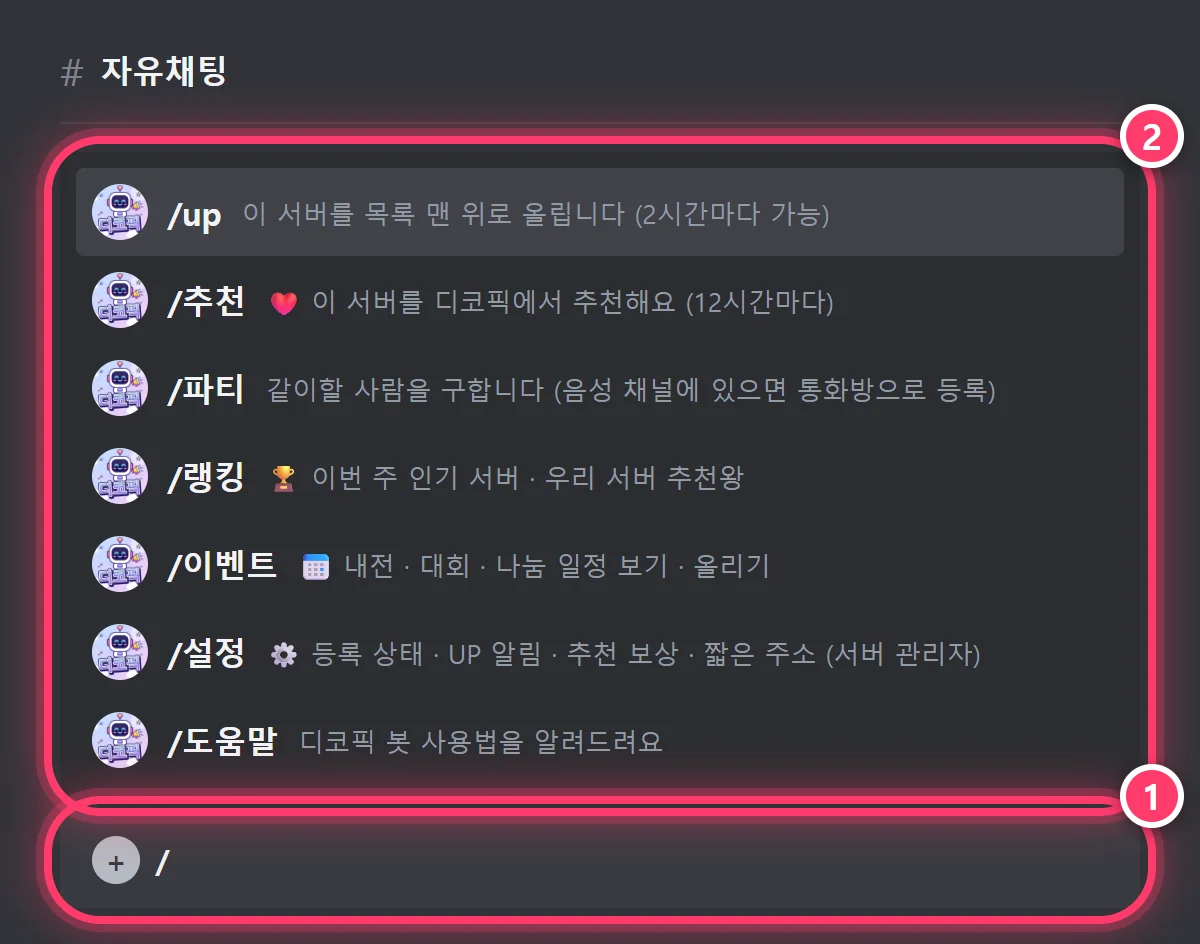
Type / in the chat box to see the list of DicoPick commands. Click the one you want to run it.
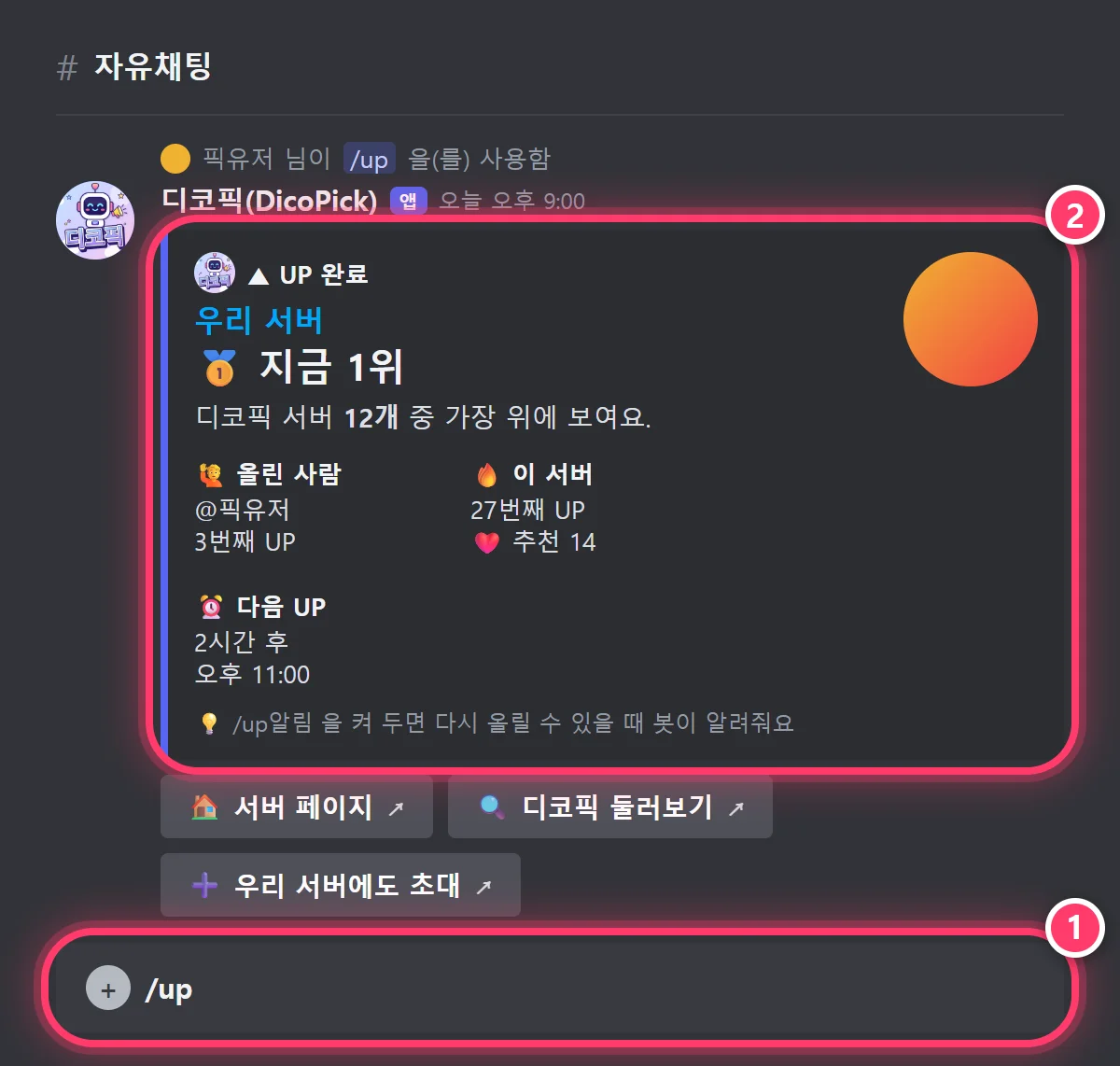
Type /up in any channel to bump your server to #1 on the DicoPick list.
It also shows who bumped, which bump this is for the server, and when you can bump next.
If 2 hours haven't passed, a yellow notice appears showing the time left and when you can bump again.
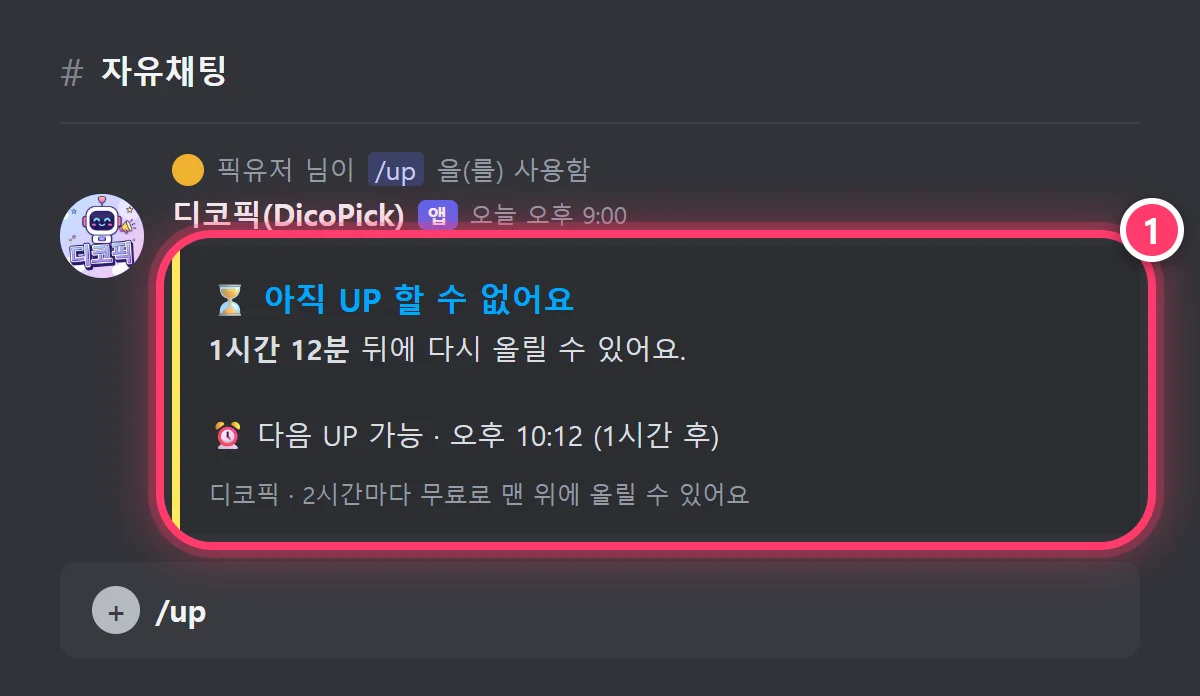
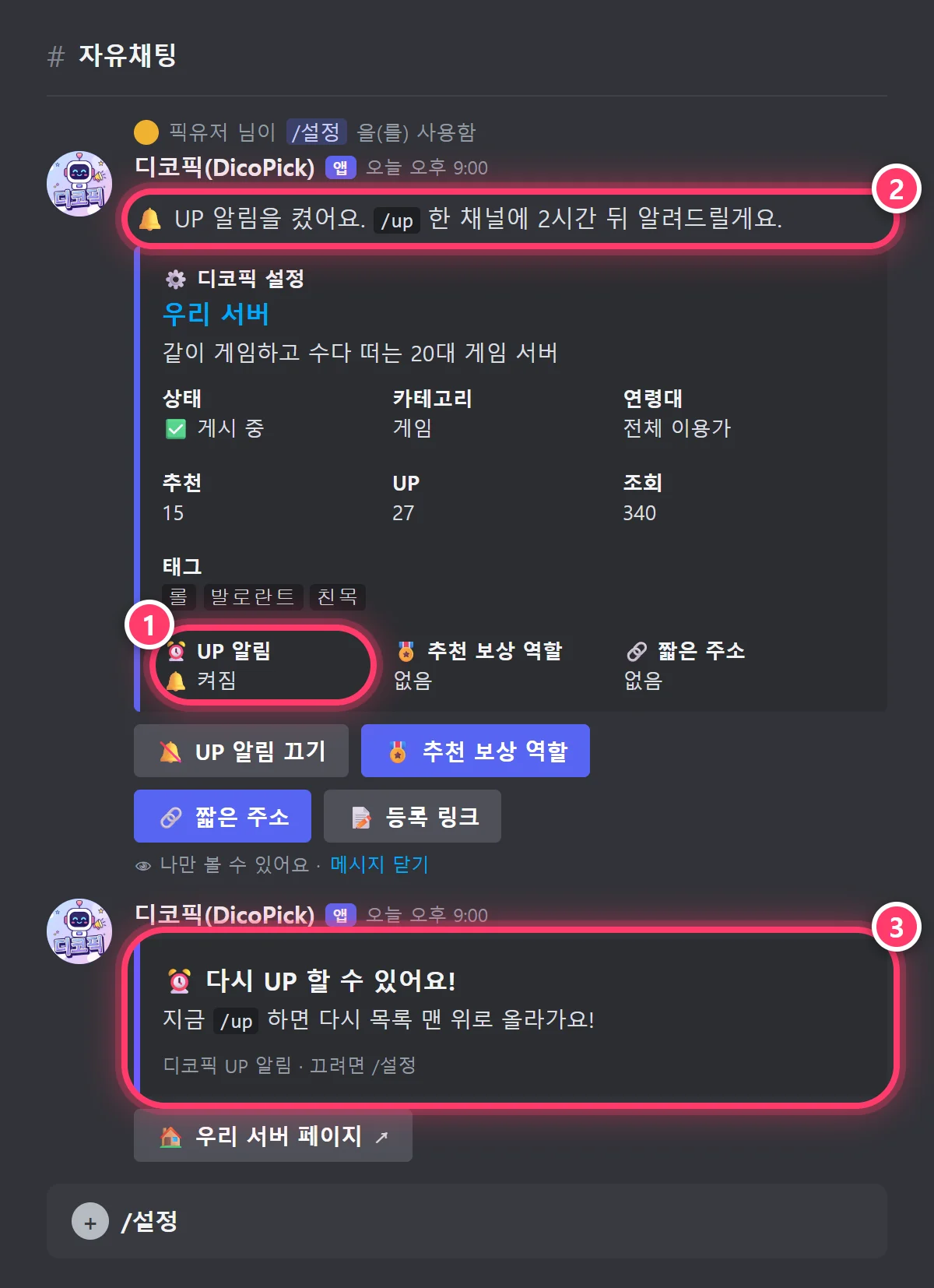
Go to /settings and click Turn on bump alerts, and 2 hours later the bot posts 'You can bump again!' in the channel where you used /up.
To turn it off, click the same button in /settings again to switch it off.
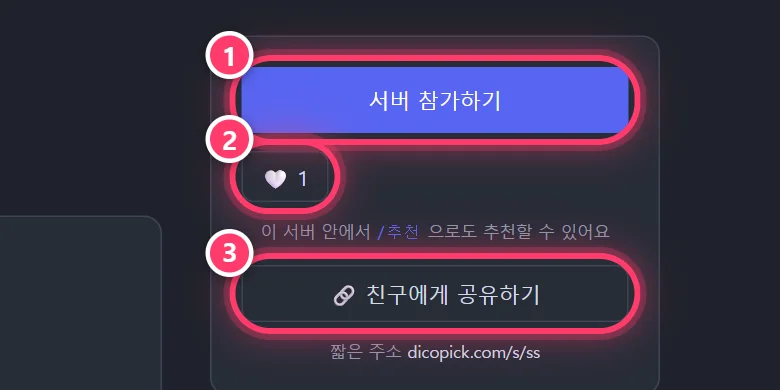
The more recommendations, the longer you stay in the Rankings. You can recommend on the website or in Discord.
Click the heart button on the right of a server page to recommend it. You can recommend the same server once every 12 hours.
Type /recommend in the server to recommend it without visiting the site. It's posted publicly in the channel, so other members tend to follow.
To prevent alt accounts, only accounts older than 7 days can recommend.
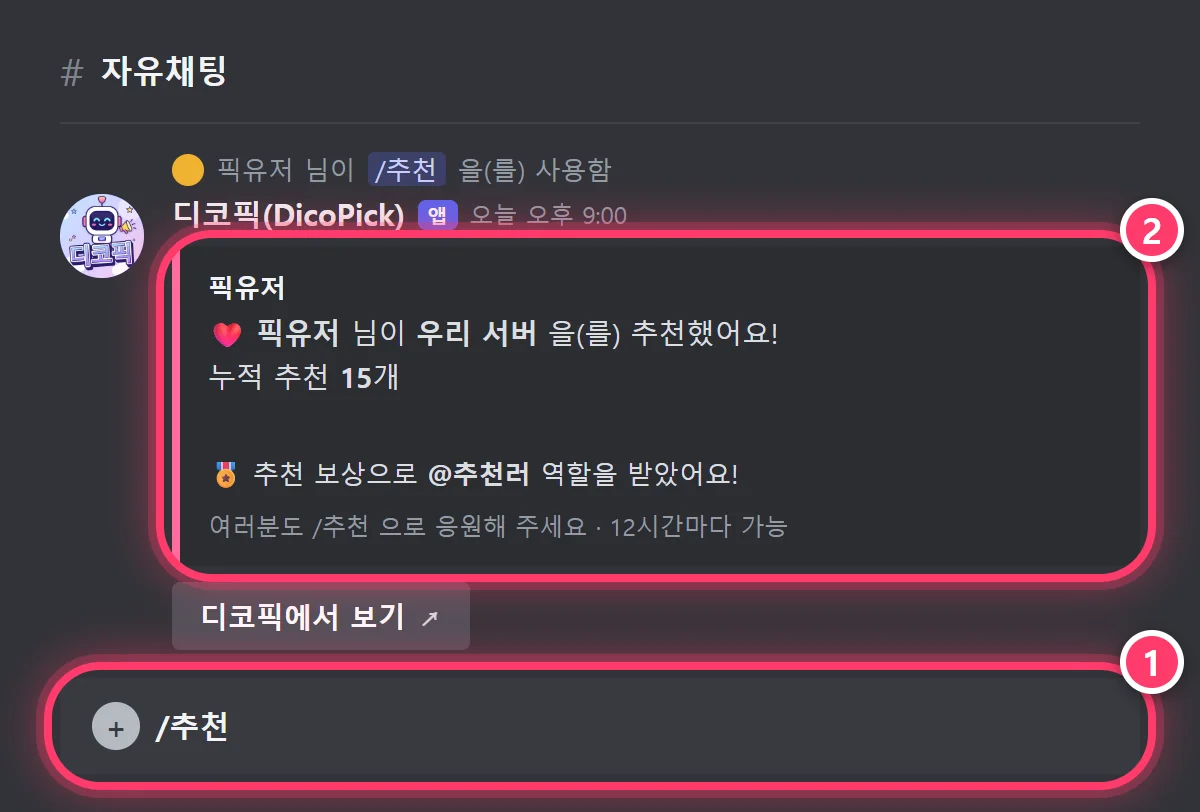
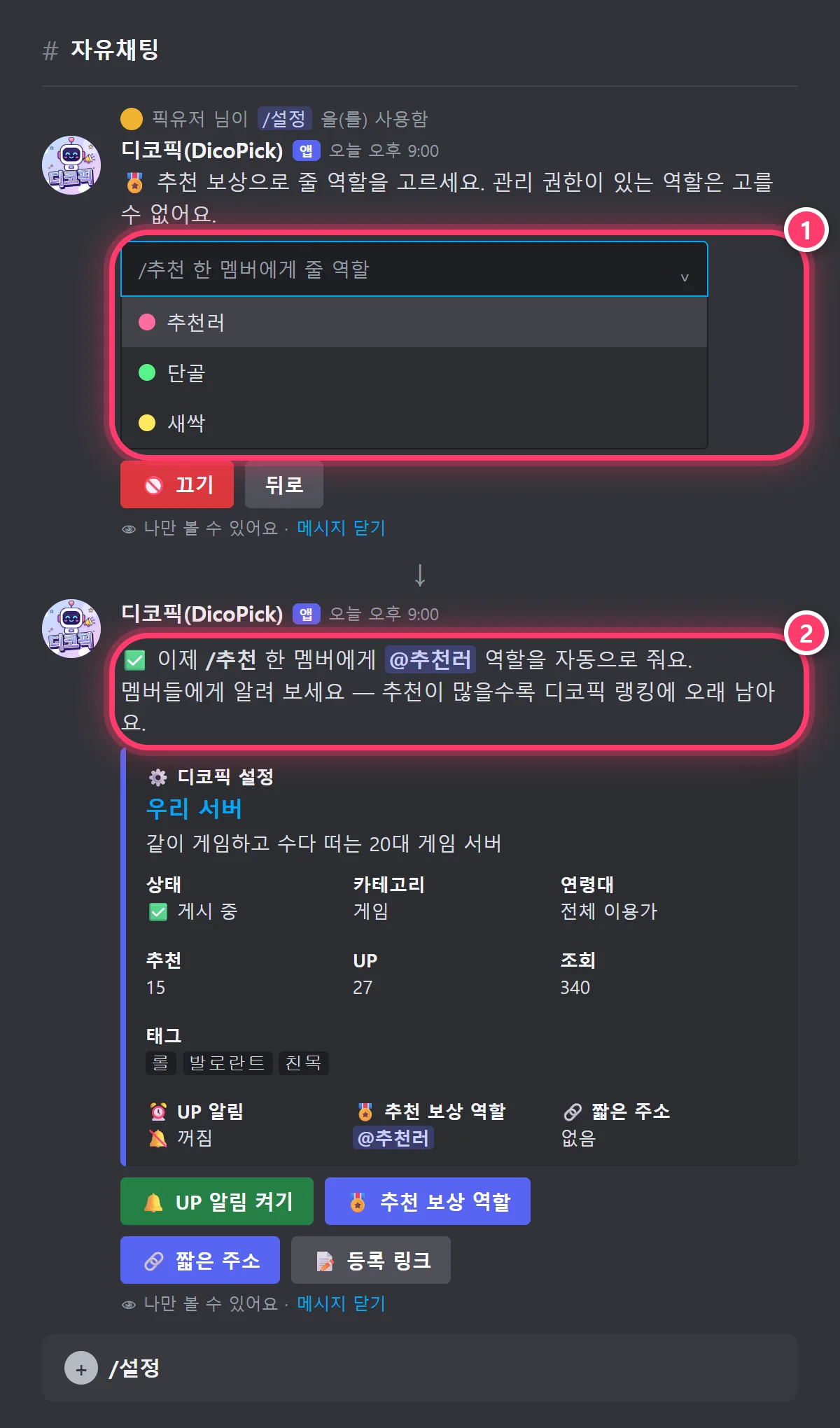
In /settings, click Reward role and pick a role, and members who use /recommend get that role automatically. Use Off on the same screen to turn it off.
The bot needs the Manage Roles permission, and the bot's role must be above the role it gives.
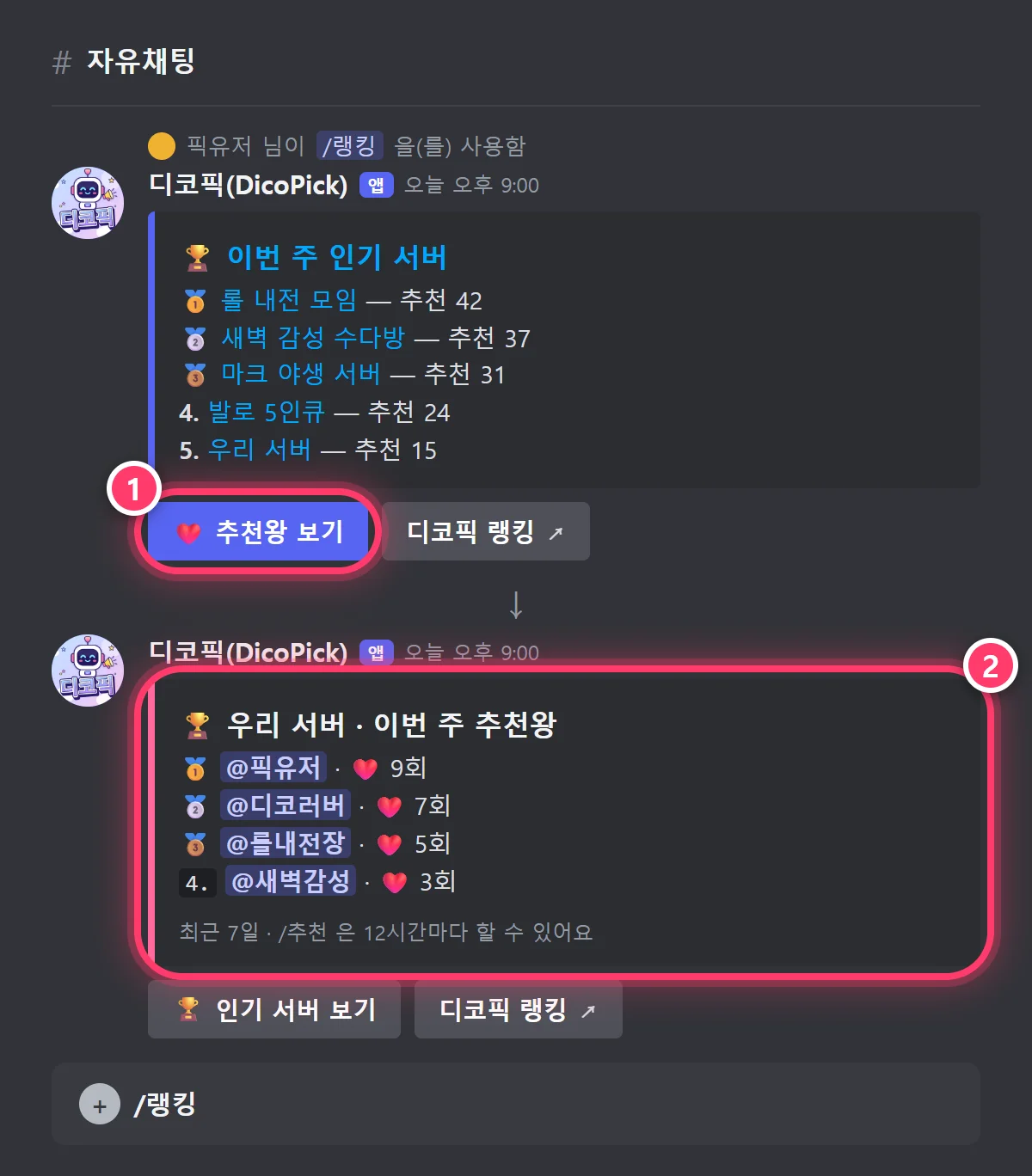
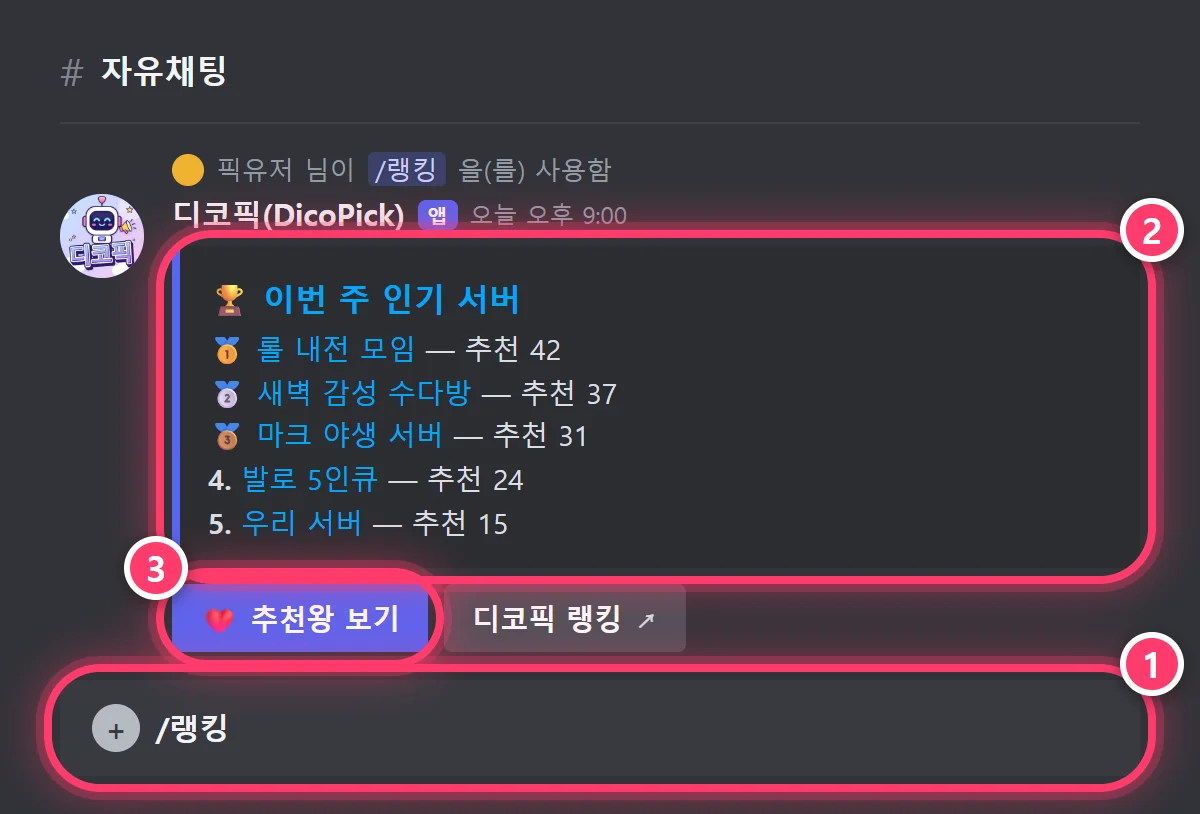
In /ranking, click Top recommenders to see the TOP 10 members who recommended your server most in the last 7 days. Handy for deciding event rewards.
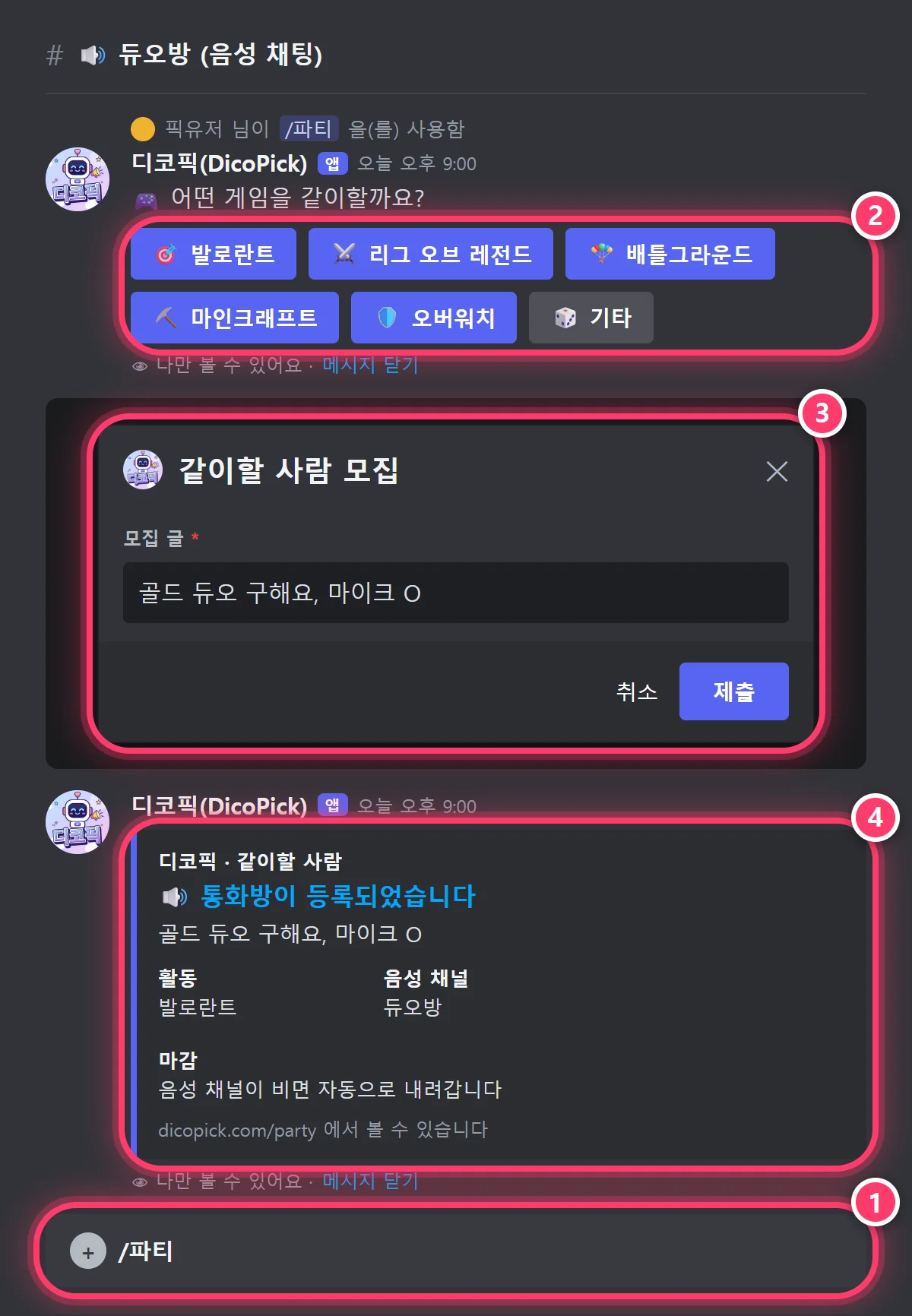
One /party in a voice channel and it shows up live on the site's Party finder.
Use /party while in a voice channel to list that channel.
With no options, game buttons appear (Valorant · League of Legends · PUBG: Battlegrounds · Minecraft · Overwatch · Other). Click one and write your recruiting post in the popup (60 characters, no links). You can also fill in the game and details options directly.
It's removed automatically when the voice channel empties. Used outside a voice channel, it's posted as a regular recruiting post.
Open Party finder in the top menu to see parties recruiting now. New parties appear instantly without refreshing.

Post in-house matches, tournaments and giveaways, and they appear with a D-day countdown on the site's event board and your server page.
Use /event to see upcoming events with Add and Cancel buttons (the buttons require the Manage Server permission).
Click Add and enter a title, date (2026-10-03), time (21:00, Korea time) and description in the form.
Each server can have up to 3 upcoming events, only within the next 60 days, and titles and descriptions can't contain links (a join button is added automatically).
To remove one, click Cancel, pick the event from the menu and confirm.
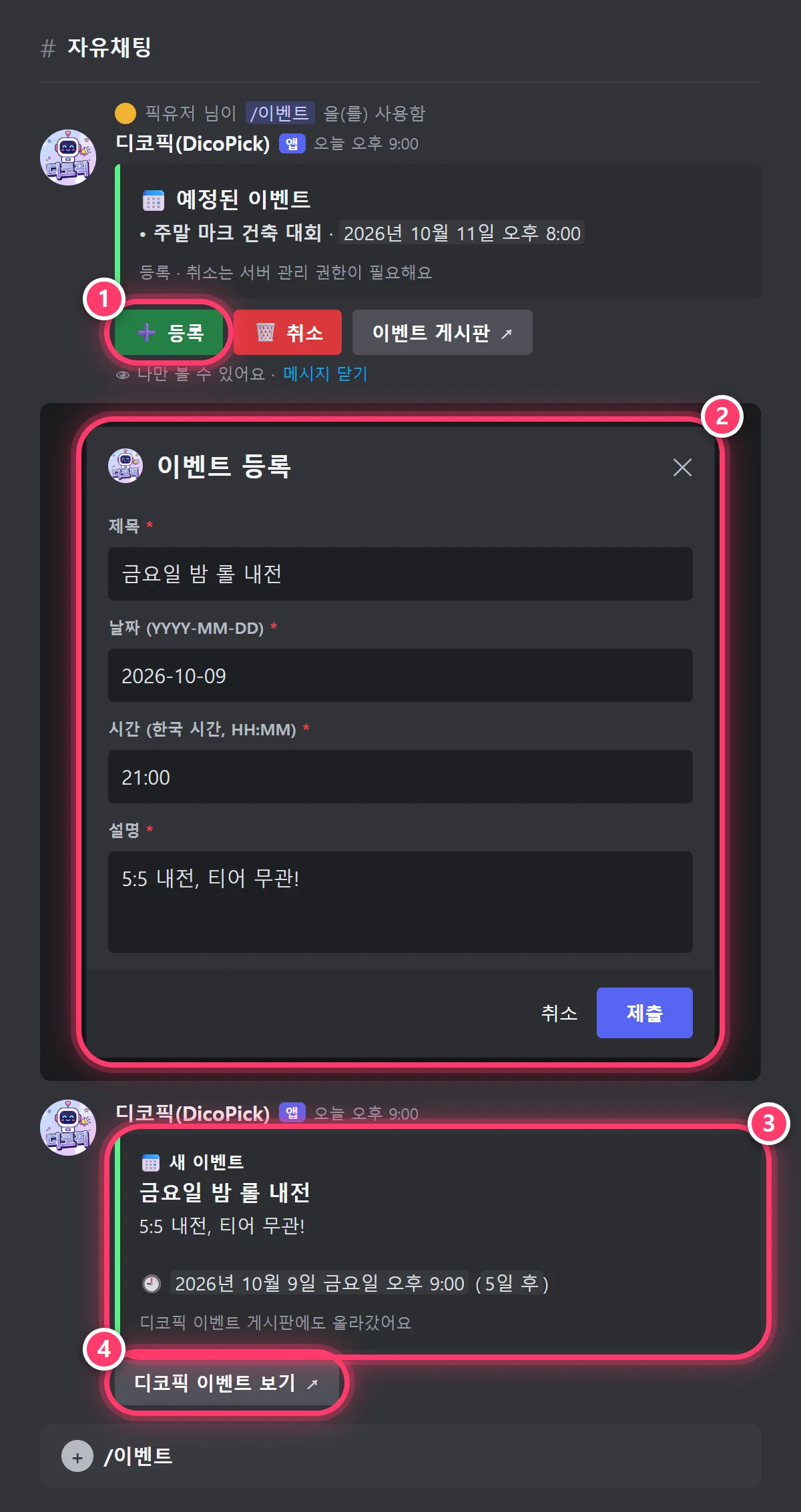
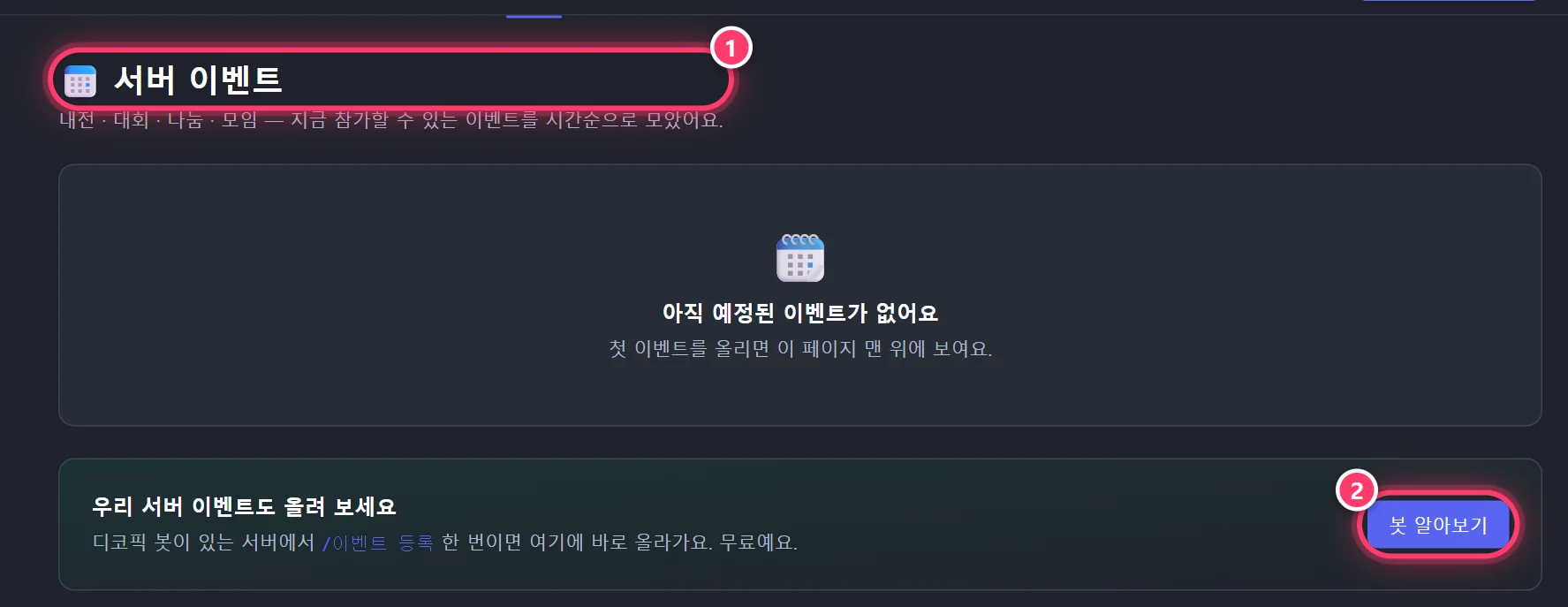
Open Events in the top menu to see upcoming events in time order. Click join to go straight to that server.
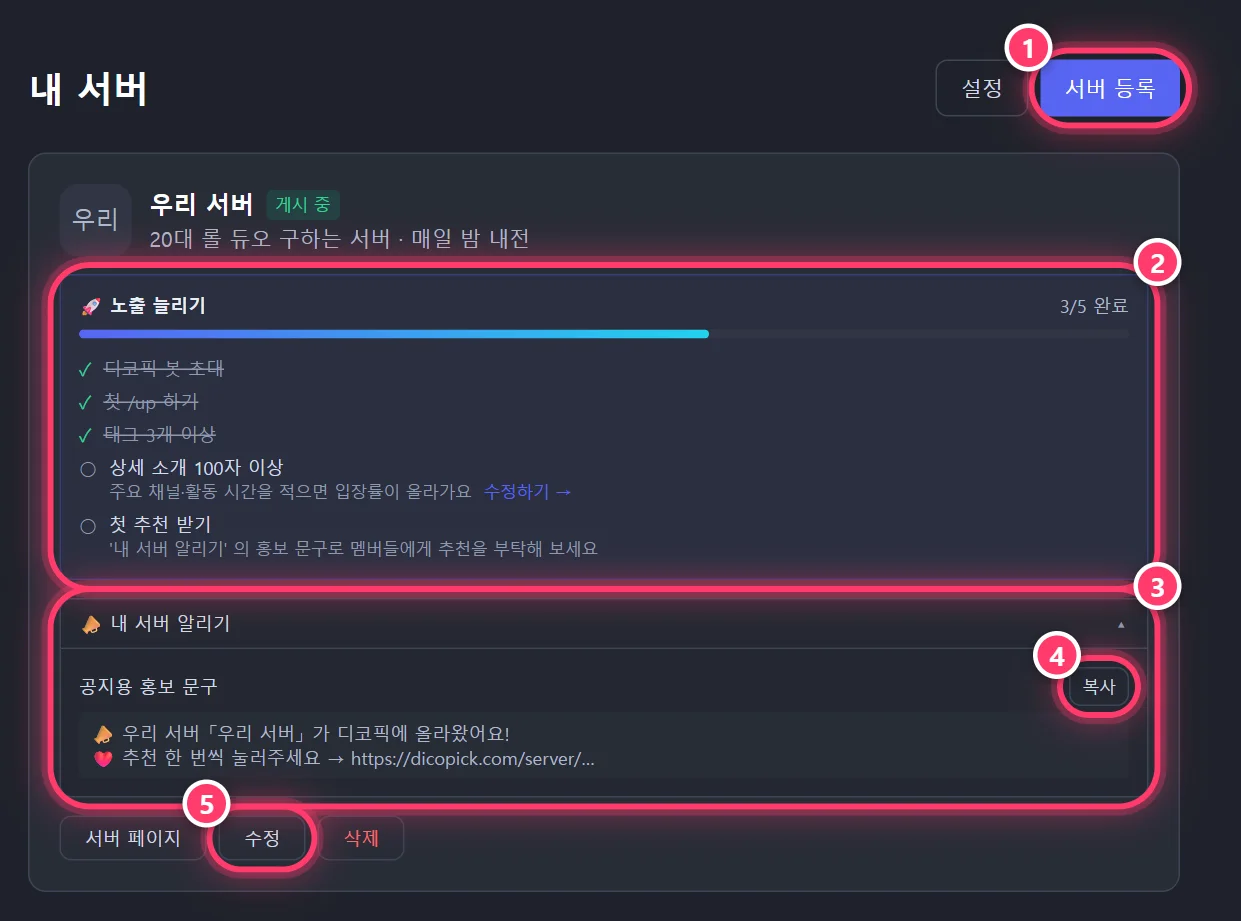
After logging in, manage your registered servers from 'My servers' at the top right.
🚀 Boost visibility shows which of these are left: invite the bot · first /up · 3 tags · 100-character full description · first recommendation. Click Edit on an unfinished item to fix it right away.
Expand 📣 Promote my server to grab your server page link, announcement promotion text and badge code with one click of Copy.
Use Edit to change the description, tags or category, or Delete the server if you no longer need it.
Share nicely on social media and profiles with a short link and a preview card.
In /settings, click Short link and enter a name in the popup to create your short link. 2–24 characters: lowercase letters, numbers, Korean and hyphens.
You can't use a name another server already has.

Click Share with friends on the server page to copy the link or open your phone's share sheet.
Paste the link into Discord or KakaoTalk and a large preview card with the server name, description and member count appears.
💡 In the dashboard (My servers), you can copy the promotion text and badge code with one click.
Find servers that suit you with search, categories, tags and Rankings.
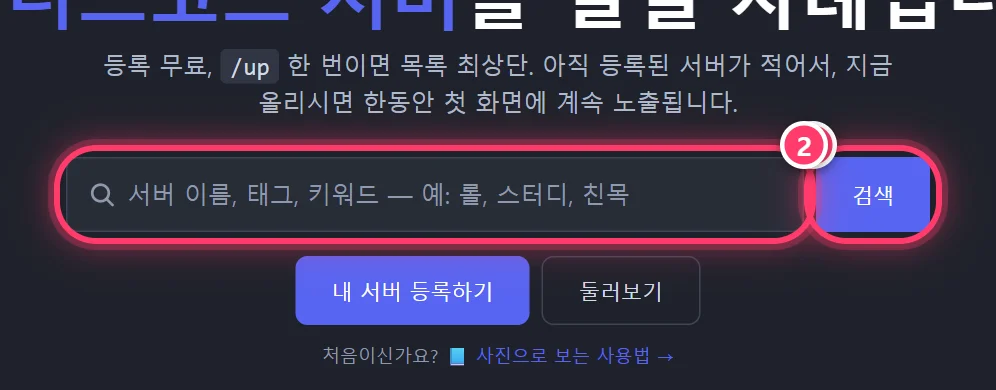
Search by server name, tag or keyword. Press / on your keyboard on any page to jump to the search box at the top.
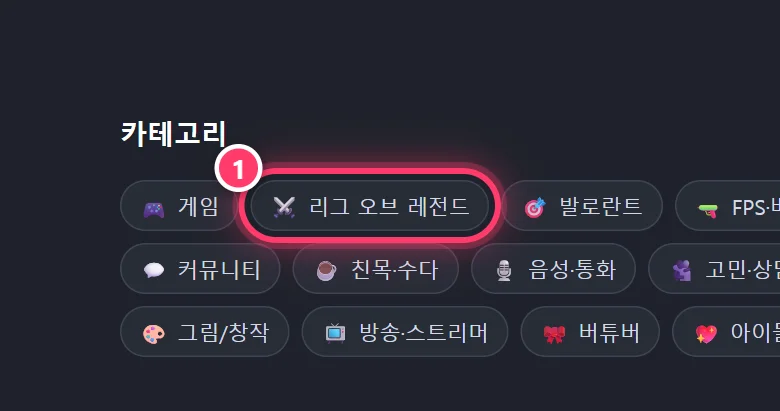
Click a category on the home page to see only servers in that area. Click a #tag on a server card to see servers with the same tag.
💡 The 19+ category is shown only after confirming you are 19 or older.
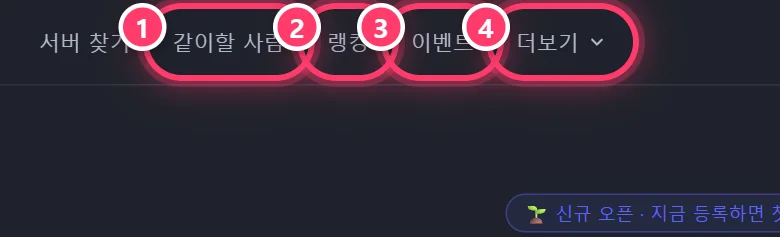
Party finder, Rankings and Events are always in the top menu. Other menus such as Trends appear under More. On a phone, swipe the menu bar sideways.
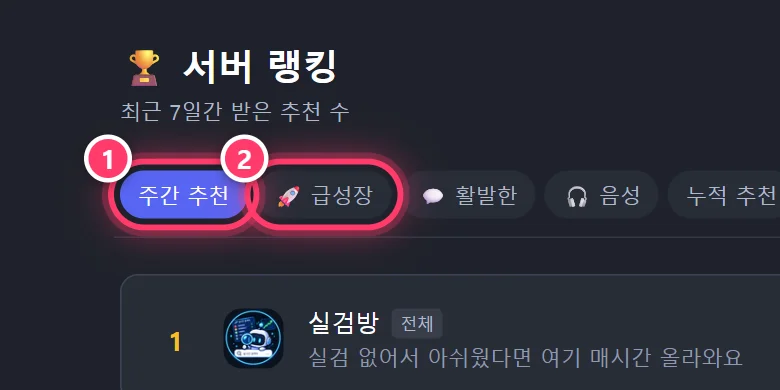
Sort by weekly recommendations · 🚀 fastest-growing (member growth) · 💬 most active (chat count) · 🎧 voice (call time) · total recommendations · members · bumps · review rating · newest.
Thanks to the fastest-growing, most active and voice Rankings, even small servers can reach #1. (Only the number of chats is counted; content is not stored.)
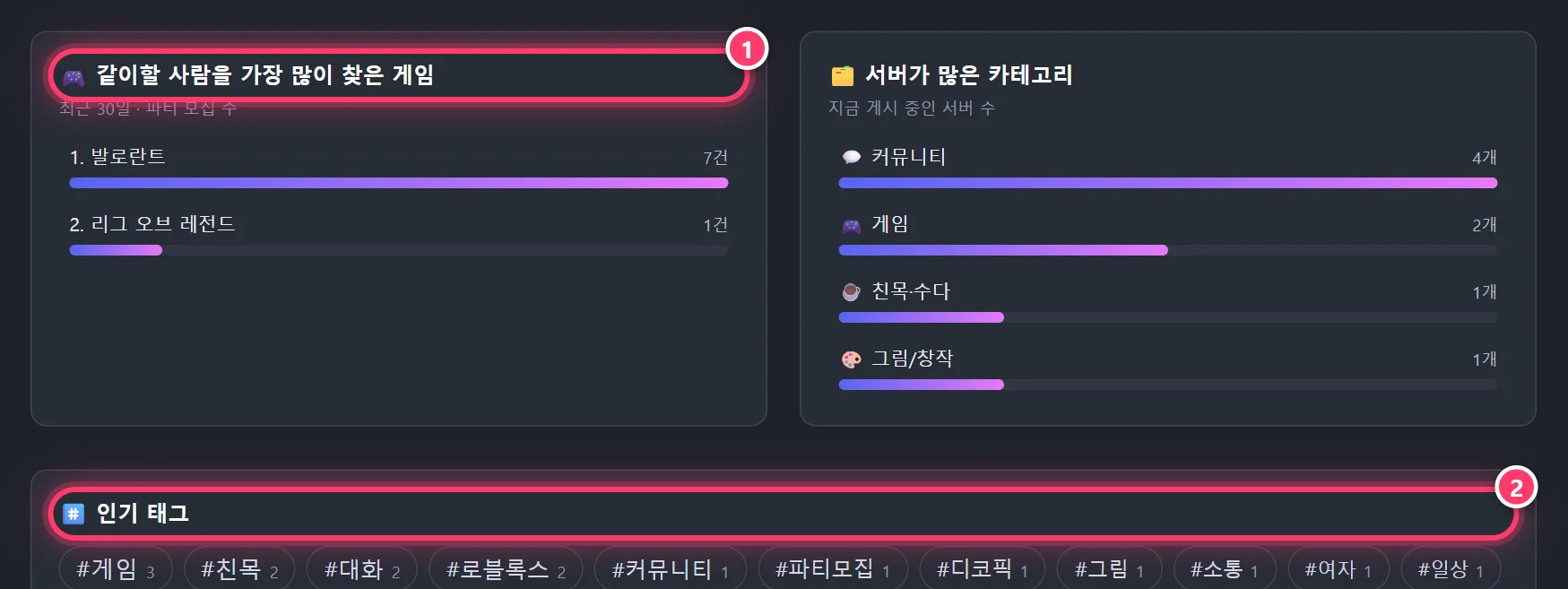
See at a glance the games people most often looked for others to play with in the last 30 days, the categories with the most servers, and popular tags.
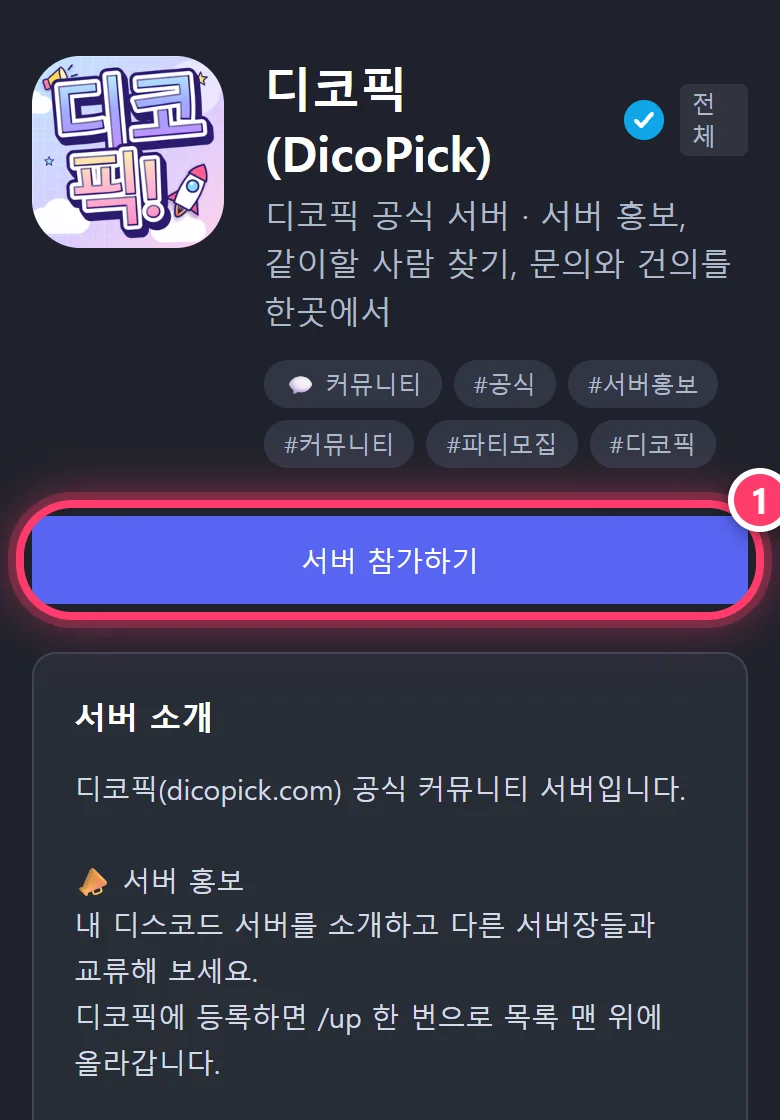
On a phone, a large Join server button appears at the top of the server page.
Manage listing status, alerts, rewards and short links from one /settings panel, and check things with /ranking and /help.
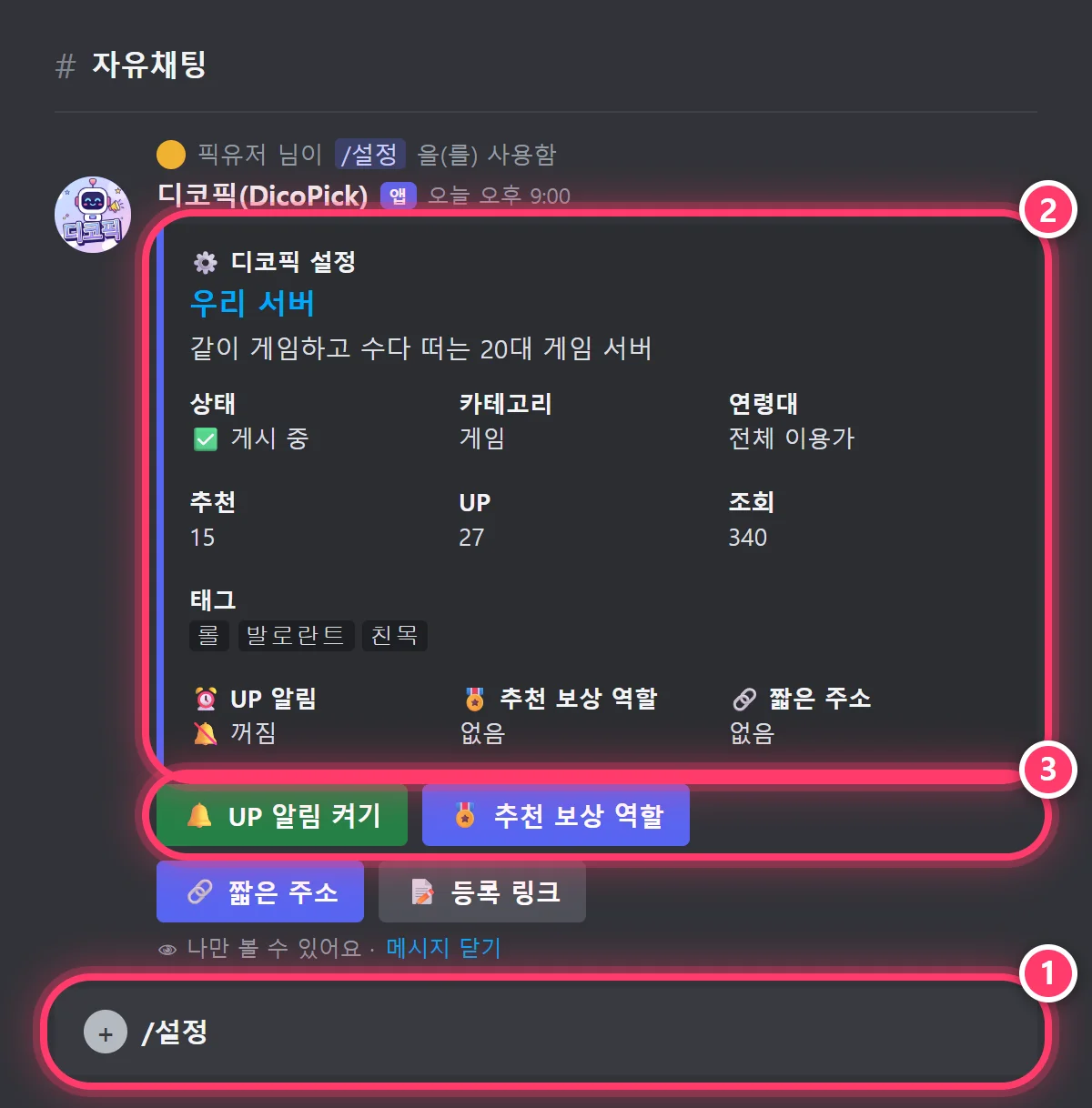
With the Manage Server permission, /settings shows your server's listing status, category, recommendations, bumps and views — visible only to you.
Buttons in the same panel let you turn bump alerts on or off, set the reward role, create a short link and get the registration link.
Shows this week's popular servers. Click Top recommenders to switch to this week's top recommenders for your server.
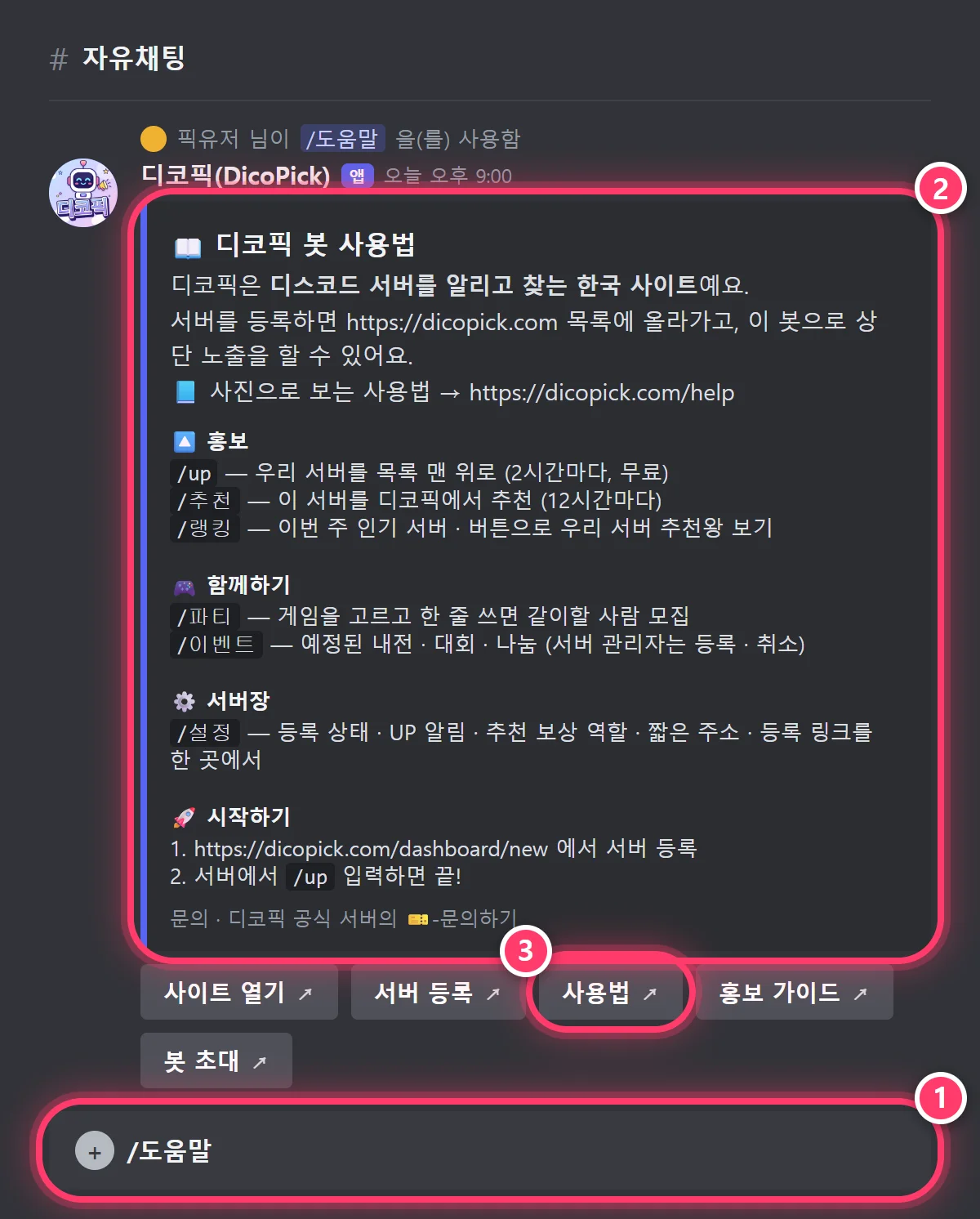
Shows the full command list plus buttons for the website, How to use, server registration, the promotion guide and inviting the bot. Admins can get this server's registration link right from /settings.
Entry steps, attendance and mini-games available only on the official DicoPick Discord server.
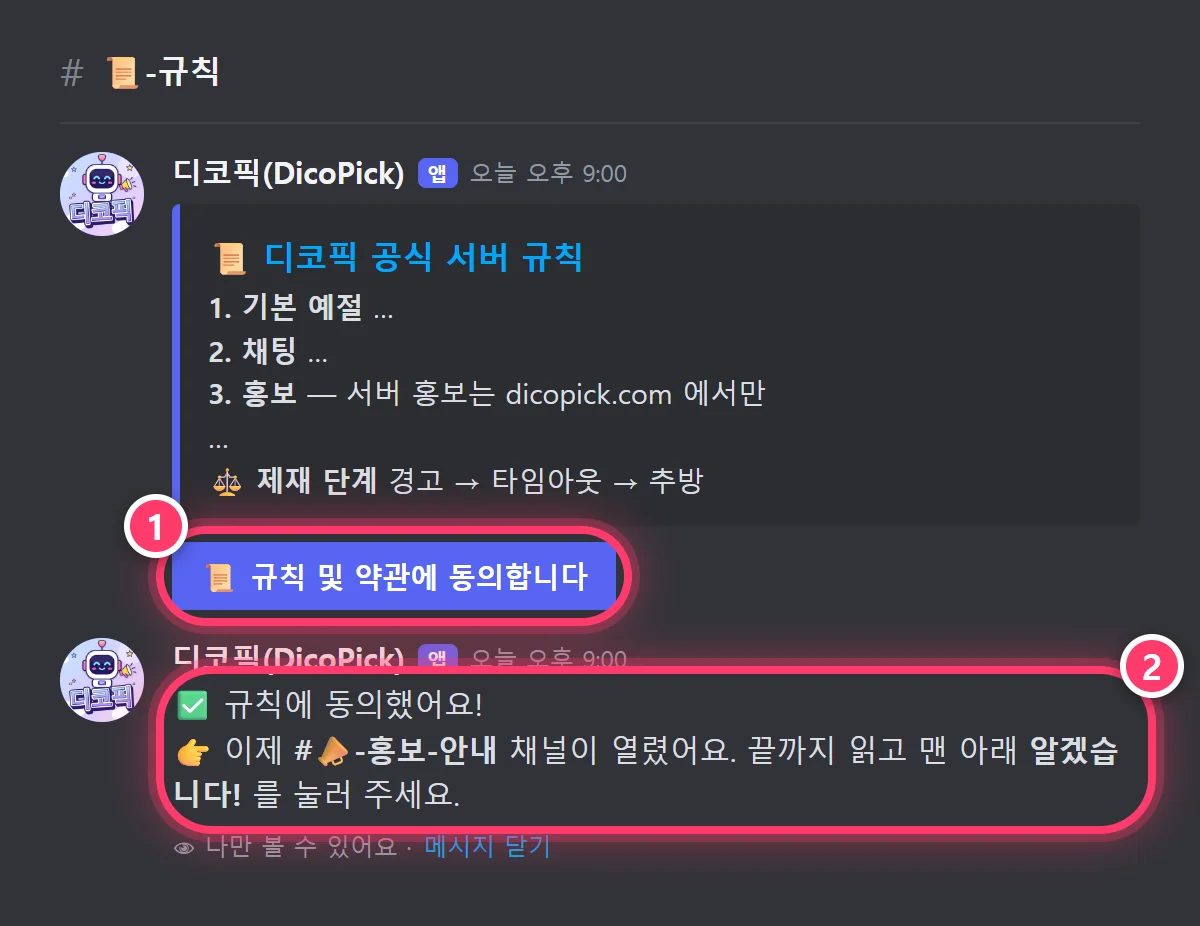
When you first join, you only see the 📜-규칙 (rules) channel. Read the rules to the end and click 규칙 및 약관에 동의합니다 (I agree to the rules and terms) to open the 📣-홍보-안내 (promotion info) channel.
Read the promotion info, click 알겠습니다! (Got it!), then click 인증하기 (Verify) in the ✅-인증 (verify) channel to unlock all channels.
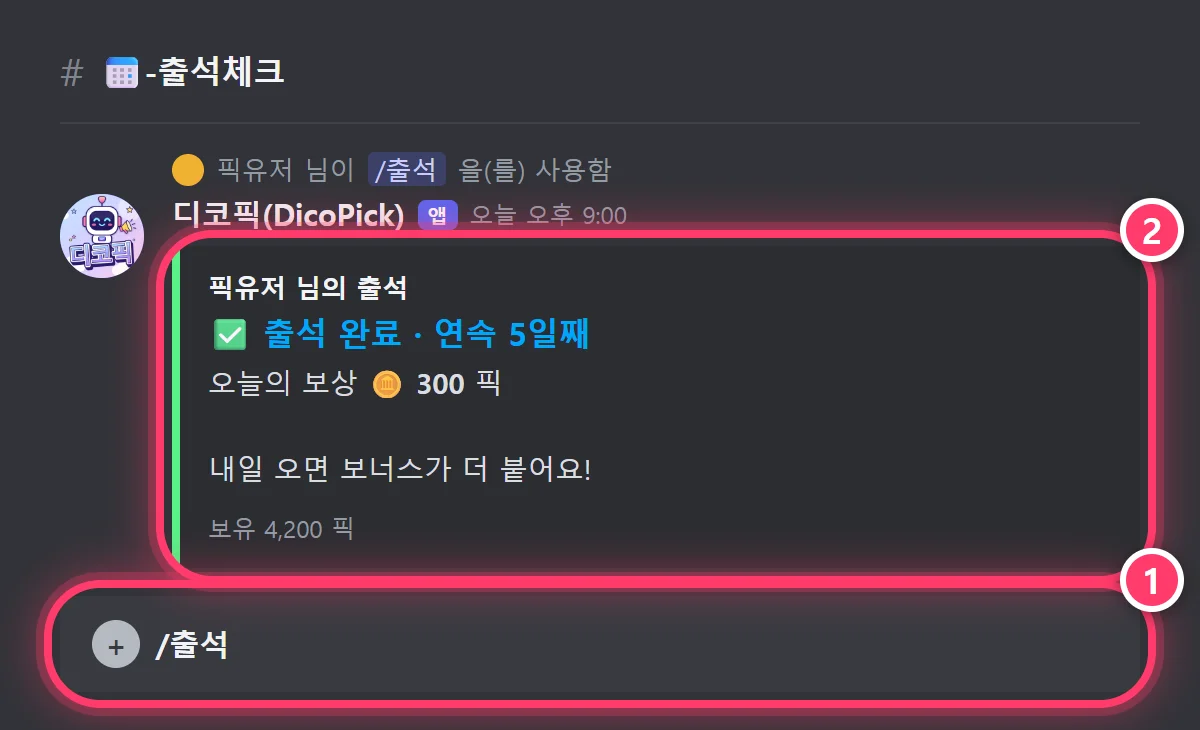
Check in once a day to receive Pick Money. The longer your streak, the bigger the bonus. There are also /지갑 (wallet) · /송금 (send) · /순위 (leaderboard).
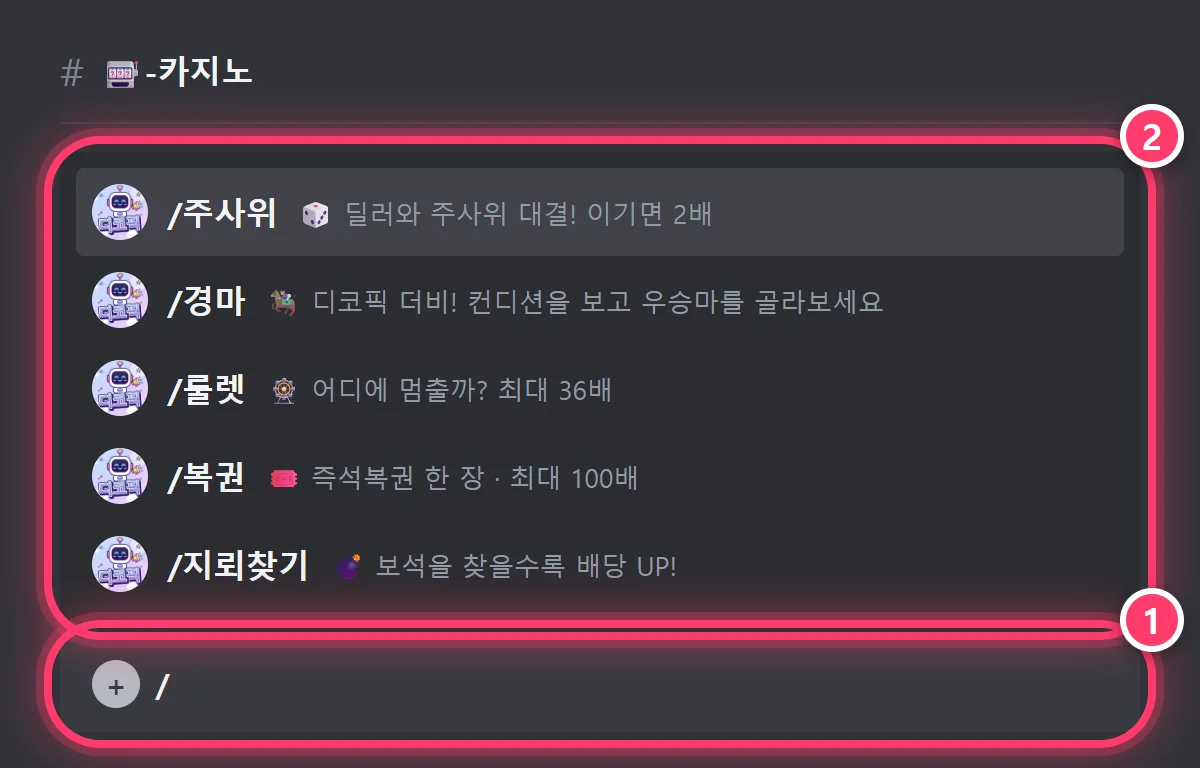
Earn Pick Money with /주사위 (dice) · /경마 (horse racing) · /룰렛 (roulette) · /복권 (lottery) · /지뢰찾기 (minesweeper) in the playground channel.
Spend your Pick in /상점 (shop) on items that feature your server at the top.
💡 Pick Money is an in-game point. It can't be exchanged for cash, bought or sold.
| Command | What it does | Who |
|---|---|---|
| /up | Bump your server to the top of the list (every 2 hours) | Everyone |
| /recommend | Recommend this server on DicoPick (every 12 hours, accounts 7+ days old) | Everyone |
| /party | Find people to play with — no options shows game buttons → recruiting post (in a voice channel, lists that channel) | Everyone |
| /ranking | This week's popular servers · [Top recommenders] for your server's TOP 10 | Everyone |
| /event | See upcoming events · [Add] · [Cancel] buttons (buttons for admins) | Everyone |
| /help | Command list and shortcuts | Everyone |
| /settings | Listing status · bump alerts on/off · reward role · short link · registration link | Admins |
| /출석 · /지갑 · /송금 · /순위 | Pick Money: check in · balance · send · leaderboardOfficial server | Everyone |
| /주사위 · /경마 · /룰렛 · /복권 · /지뢰찾기 | Pick Money mini-gamesOfficial server | Everyone |
| /상점 | Buy items that feature your server at the top with PickOfficial server | Everyone |
Bump your server to the top of the list (every 2 hours)
Recommend this server on DicoPick (every 12 hours, accounts 7+ days old)
Find people to play with — no options shows game buttons → recruiting post (in a voice channel, lists that channel)
This week's popular servers · [Top recommenders] for your server's TOP 10
See upcoming events · [Add] · [Cancel] buttons (buttons for admins)
Command list and shortcuts
Listing status · bump alerts on/off · reward role · short link · registration link
Pick Money: check in · balance · send · leaderboardOfficial server
Pick Money mini-gamesOfficial server
Buy items that feature your server at the top with PickOfficial server
The applications.commands permission may have been missing when the bot was invited. Invite it once more with the invite button at dicopick.com/bot (it overwrites the existing bot). Restarting the Discord app refreshes the list.
You invited the bot but haven't registered on the site. Register with the server registration button in the message or Register my server on dicopick.com, and you can use /up right away.
If the bot leaves (is kicked from) the server, the server is removed from the list automatically. Invite the bot again and it comes back within 10 minutes. If it was suspended for breaking the rules, let us know in the official server's support channel.
You can recommend the same server once every 12 hours, and to prevent alt accounts only accounts older than 7 days can recommend.
In Server Settings → Roles, move the DicoPick bot role above the reward role. The bot role also needs the Manage Roles permission.
The bot checks links every 6 hours and automatically replaces dead links with never-expiring ones. If it's urgent, clear the invite link in the dashboard (My servers) and save — a new one is created immediately.
Alerts go to the channel where you used /up. Check that the bot can send messages in that channel and that bump alerts are turned on in /settings.
No. It only counts numbers and times, such as chat count and last message time, and never reads or stores message content. It doesn't ask for administrator permission either.